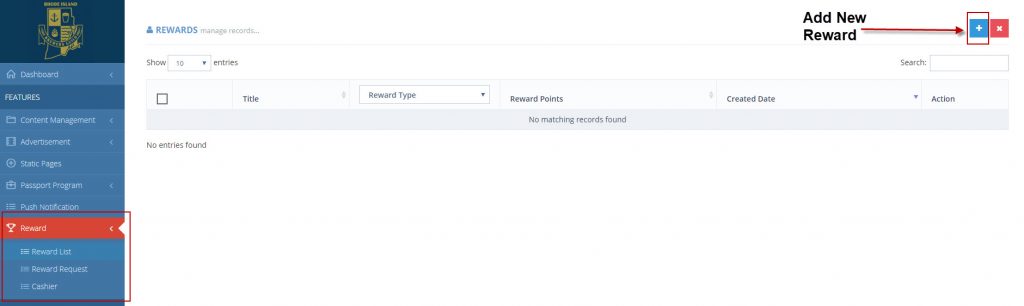
To add a new reward, simply click on the “Rewards” tab of the dashboard and click “Reward List”.
From there, you can click the blue + button in the upper right-hand corner.
Fill out the form accordingly:
Select Program
Select Type
Title
Description
Points Required (example, 50)
Size Variants (if applicable)
Confirmation Message will pop up once the reward has successfully been claimed
Email Message will be sent to user’s email once the reward has successfully been claimed
Badge Reward: Check this box if the reward is a virtual badge. We recommend using a square image to coordinate with this.
Pin Required: This is used for festivals or events where a reward is giving to the user. To set up a pin, please to the Cashier section of the Rewards tab. Please leave this blank if not being used.
Display order can be used to manually order the rewards in the passport of the app.
Image (can be uploaded or dragged/dropped)
Click “Save” and check the app for the new reward!
Deleting a Reward
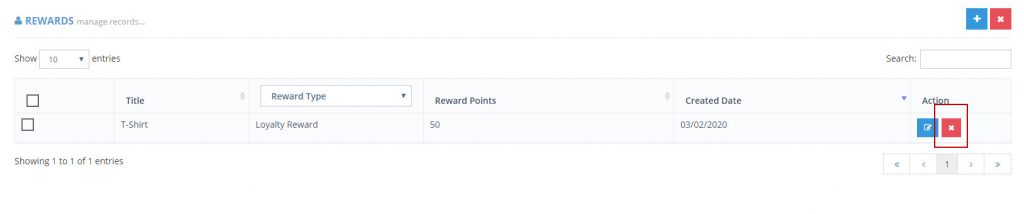
To delete a reward, you can simply visit your reward dashboard and click the red X next to the reward.
Editing a Reward
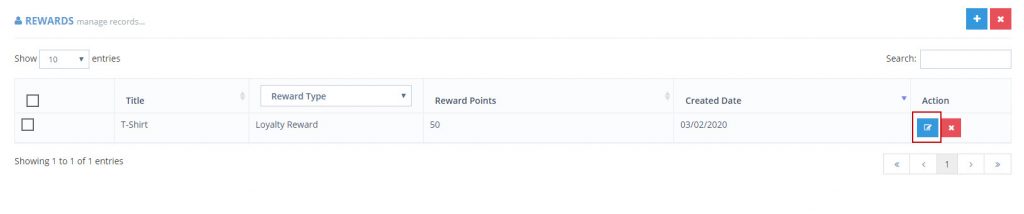
Editing a reward is also very simple. Click the blue pencil icon next to the reward from the dashboard and edit any field that you’d like.
By Jen Cavagnaro|2020-03-02T13:45:34+00:00March 2nd, 2020|Comments Off on Managing Rewards